Safe CPU & GPU Temperatures: What's Normal, What's Too Hot, and When to Worry
A definitive guide to CPU and GPU temperature ranges — what's normal at idle and under load, when temperatures become dangerous, how heat affects lifespan, and exactly what to do when your hardware runs too hot.
The Question Every PC Owner Asks
"Is 80°C too hot for my GPU?" — "My CPU hits 90°C when gaming, is that normal?" — "Should I be worried about 75°C?"
These are some of the most googled questions in PC hardware. And the answers you find online are usually frustratingly vague: "it depends." While that's technically true — different chips have different thermal limits — there are clear guidelines that apply to the vast majority of modern CPUs and GPUs.
This guide gives you concrete temperature ranges, explains what actually happens when components get too hot, and tells you exactly what to do about it. No vague hand-waving, just real numbers and practical advice.
Understanding Temperature Ratings
Before we get into specific numbers, you need to understand two key specifications that every processor has:
TJunction Max (TJ Max)
This is the absolute maximum temperature the silicon is designed to withstand. When a processor reaches its TJ Max, it will either:
- Thermal throttle — reduce clock speeds to lower heat output
- Emergency shutdown — if throttling can't bring temps down fast enough
| Processor Family | Typical TJ Max |
|---|---|
| Intel Core 12th–15th Gen | 100°C |
| AMD Ryzen 5000–9000 | 95°C |
| AMD Ryzen X3D variants | 89°C |
| NVIDIA RTX 40 Series | 83–90°C (GPU temp) |
| NVIDIA RTX 50 Series | 83–92°C (GPU temp) |
| AMD RX 7000 Series | 100°C (junction), 90°C (edge) |
| AMD RX 8000 Series | 100°C (junction), 90°C (edge) |
Important: Just because a chip can operate at these temperatures doesn't mean it should. Running at or near TJ Max constantly degrades the silicon faster and means your cooling solution is inadequate.
Operating Temperature Range
This is the manufacturer's recommended range for sustained use. Most CPUs and GPUs are rated for 0°C to 95–100°C, but the practical "healthy" range is much narrower than that.
Safe Temperature Ranges: The Complete Breakdown
Here's what to actually target. These ranges apply to desktop components with adequate cooling:
CPU Temperatures
| Scenario | Excellent | Normal | Warm but OK | Too Hot | Critical |
|---|---|---|---|---|---|
| Idle / Light use | 25–35°C | 35–45°C | 45–55°C | 55°C+ | — |
| Gaming | 50–65°C | 65–75°C | 75–85°C | 85–95°C | 95°C+ |
| Stress test / Rendering | 60–70°C | 70–80°C | 80–90°C | 90–95°C | 95°C+ |
Notes:
- AMD Ryzen X3D chips (7800X3D, 9800X3D) should stay under 89°C — their 3D V-Cache is more thermally sensitive
- Intel 14th/15th Gen K-series CPUs are notoriously power-hungry; seeing 90°C+ under all-core loads is common even with high-end cooling
- These ranges assume a room temperature of ~22°C. Add 5–10°C if your room is warmer
GPU Temperatures
| Scenario | Excellent | Normal | Warm but OK | Too Hot | Critical |
|---|---|---|---|---|---|
| Idle / Desktop | 25–35°C | 35–45°C | 45–50°C | 50°C+ | — |
| Gaming | 55–65°C | 65–75°C | 75–83°C | 83–90°C | 90°C+ |
| Stress test / Mining | 60–70°C | 70–80°C | 80–88°C | 88–95°C | 95°C+ |
Notes:
- GPUs with zero-RPM fan modes will idle hotter (45–55°C) — this is by design and not a concern
- NVIDIA GPUs have a separate hotspot temperature that runs 10–15°C hotter than the reported "GPU temperature" — this is normal
- AMD GPUs report junction temperature (hottest point on die) and edge temperature (average die temp). Junction temps 10–20°C above edge temps are expected
Laptop Temperatures
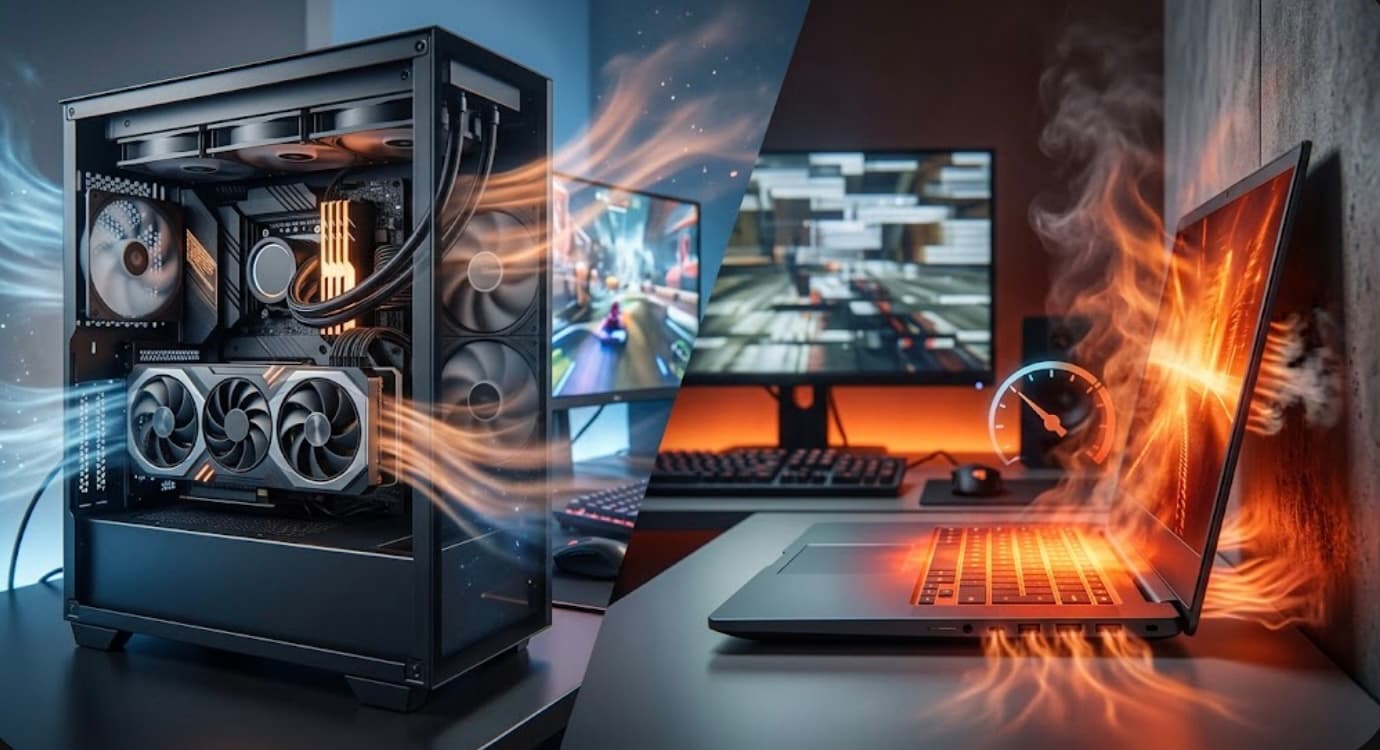
Laptops run hotter than desktops by design. Their thermal limits are the same, but their cooling solutions have far less headroom:
| Scenario | Normal | Warm but OK | Too Hot | Critical |
|---|---|---|---|---|
| Idle / Light use | 35–50°C | 50–60°C | 60°C+ | — |
| Gaming | 70–85°C | 85–92°C | 92–100°C | 100°C+ |
| Stress test | 80–90°C | 90–95°C | 95–100°C | 100°C+ |
Seeing 85–90°C on a gaming laptop under load is completely normal. Only worry if you're consistently hitting 95°C+ and experiencing throttling (FPS drops, stuttering).
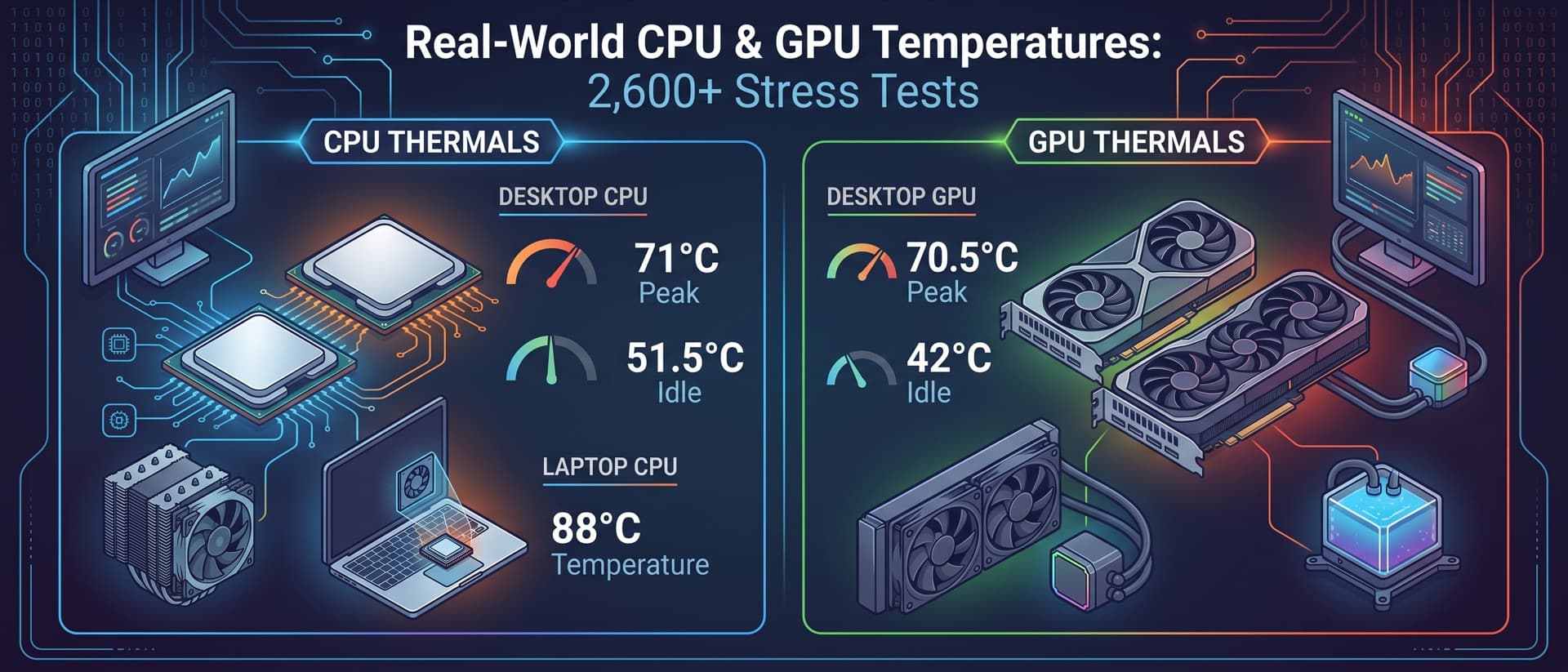
Want to know where your temps rank? Our real-world temperature report shows the median idle and peak temperatures for 80 popular CPUs and GPUs, based on 2,600+ stress tests. Run our stress test tool to see how your system compares with other owners of the same hardware.
What Actually Happens When a Component Gets Too Hot?
Understanding the consequences helps you calibrate how urgent a thermal problem really is:
Short-Term Effects (Immediate)
-
Thermal throttling — The processor reduces its clock speed to produce less heat. You'll notice lower FPS in games, longer render times, and general sluggishness. Performance can drop 10–30% when throttling kicks in.
-
Fan noise increase — Fans ramp to maximum speed trying to compensate. This is your PC's most obvious warning sign.
-
System instability — At extreme temperatures (near TJ Max), you may see crashes, freezes, or spontaneous reboots.
-
Emergency shutdown — The last line of defense. The system powers off completely to prevent hardware damage. If this happens, your cooling has failed entirely.
Long-Term Effects (Over Months/Years)
-
Electromigration — High temperatures accelerate the movement of metal atoms in the processor's circuitry. Over time, this can create voids and shorts in the wiring, slowly degrading the chip. The rate doubles roughly every 10–15°C above the design target.
-
Solder degradation — The thermal interface material (TIM) between the die and heat spreader can degrade faster at sustained high temperatures, gradually worsening thermal transfer.
-
Capacitor aging — VRM capacitors on the motherboard and GPU PCB age faster with heat. This can lead to stability issues or component failure years down the line.
-
Reduced boost behavior — Modern CPUs and GPUs use temperature as a factor in boost algorithms. A chip that consistently runs hot will boost less aggressively over its lifetime, even at the same workload.
The practical takeaway: Running under 80°C for gaming and under 85°C for stress tests will maximize your hardware's lifespan. Running at 90°C+ consistently won't kill your components overnight, but it will shorten their useful life meaningfully.
Diagnosing Why Your Temps Are High
If your temperatures fall in the "Too Hot" or "Critical" zones, here's a systematic approach to finding and fixing the cause:
Step 1: Check the Basics
- Ambient temperature — Is your room unusually warm? A 30°C room adds 8–10°C to component temps vs. a 22°C room.
- Case airflow — Are intake and exhaust fans actually spinning? Is the case placed in an enclosed space (shelf, cabinet)?
- Dust buildup — When did you last clean your PC? Dust-clogged heatsinks and filters are the #1 cause of gradually increasing temperatures. See our spring cleaning guide for a thorough walkthrough.
Step 2: Evaluate Your Cooling Solution
- Stock cooler on a high-TDP chip — If you're running an Intel i7/i9 or Ryzen 7/9 on the stock cooler, you're almost certainly thermally limited. Upgrading to even a $35 tower cooler can drop temps by 15–25°C. Check our air cooler vs AIO comparison for upgrade recommendations.
- Old thermal paste — If your cooler has been installed for 3+ years without re-pasting, the thermal compound may have dried out. Fresh paste can recover 5–10°C.
- AIO radiator placement — If your AIO radiator is at the bottom of the case or has the tubes at the top of the radiator, air bubbles in the pump can reduce cooling efficiency.
Step 3: Software-Side Solutions
Before spending money on new hardware, try:
- Undervolting — Reduce voltage at the same clock speed. Free, effective, and can drop temps 5–15°C on CPUs and 8–15°C on GPUs.
- Fan curve optimization — Most fans default to conservative curves that prioritize silence over cooling. Tools like FanControl (Windows) let you create custom curves that ramp fans more aggressively at lower temps.
- Power limit adjustment — For GPUs, capping power to 85–90% in MSI Afterburner typically reduces temps by 5–8°C with only a 2–3% FPS loss.
Step 4: Laptop-Specific Solutions
Laptop cooling is more constrained, but you still have options:
- Elevate the back — Even propping the back up by 1–2cm with a book improves airflow significantly.
- Cooling pads — Quality pads with large fans can reduce temps by 3–8°C.
- Re-pasting — On laptops 2+ years old, re-pasting the CPU and GPU can recover 10–15°C. Difficulty varies dramatically by brand — check our laptop brand cooling guide for details.
- Performance mode settings — Most laptop manufacturers have performance profiles. "Balanced" or "Quiet" modes cap TDP and reduce heat.
Temperature Monitoring: How to Check Your Temps
You need reliable monitoring to know where you stand:
Desktop Tools
| Tool | Cost | Best For |
|---|---|---|
| HWiNFO64 | Free | Most detailed sensor data, logging capability |
| MSI Afterburner | Free | GPU temps with in-game overlay |
| Core Temp | Free | Lightweight CPU-only monitoring |
| ThermalStats CLI | Free | Automated stress test with community comparison |
Laptop Tools
Same tools work on laptops, but also consider:
- Your OEM's software (Lenovo Vantage, Dell Command Center, Armory Crate) — includes fan control
- ThrottleStop (Intel laptops) — shows thermal throttling events and limits
What to Monitor
- Average temperature during your typical workload (gaming, editing, etc.)
- Peak temperature during the heaviest loads
- Idle temperature — establishes your baseline
- Throttling events — HWiNFO64 shows "Thermal Throttling: Yes/No" in its sensor readout
Common Myths Debunked
"My GPU at 80°C is about to die"
False. 80°C is within normal operating range for virtually every modern GPU. Most are designed to run at 83–90°C before throttling. At 80°C, you have headroom.
"Idle temps of 50°C mean something is wrong"
Not necessarily. GPUs with zero-RPM fan modes deliberately let the chip warm up at idle to keep fans silent. CPUs with aggressive boost algorithms may also run warmer at idle. It's load temps that matter.
"You should always keep your CPU under 70°C"
Overly cautious. While lower is better, 70–85°C under gaming loads is perfectly normal and won't harm your hardware. Obsessing over hitting 60°C under load often means louder fans for no practical benefit.
"Aftermarket thermal paste is always better than stock"
Depends. Pre-applied paste on high-end coolers (Noctua, be quiet!) is typically excellent. The improvement from switching to aftermarket paste is usually 1–3°C — not worth the effort unless you're re-mounting anyway.
"More case fans always means lower temps"
Diminishing returns. Going from 0 to 2 case fans is transformative. Going from 2 to 4 helps noticeably. Going from 4 to 8 typically adds 1–2°C improvement at best while adding noise.
Quick Reference Card
Save this for later:
| Component | Target (Gaming) | Start Worrying | Take Action |
|---|---|---|---|
| Desktop CPU | Under 80°C | 85°C+ | 90°C+ sustained |
| Desktop GPU | Under 80°C | 85°C+ | 90°C+ sustained |
| Laptop CPU | Under 90°C | 95°C+ | Constant throttling |
| Laptop GPU | Under 85°C | 90°C+ | Constant throttling |
| NVMe SSD | Under 55°C | 65°C+ | 70°C+ sustained |
| RAM | Under 45°C | 50°C+ | 55°C+ (DDR5) |
The Bottom Line
Temperature anxiety is one of the most common concerns in the PC community, and most of the time, your hardware is fine. Modern processors are designed with robust thermal protection — they will throttle and shut down long before any permanent damage occurs.
The real question isn't "is this temperature safe?" but "is my cooling solution performing as expected?" That's exactly what ThermalStats is built for — run a stress test, and we'll show you how your temperatures compare to other users with identical hardware. If you're in the normal range, relax. If you're running hotter than most, the solutions above will help you fix it.
Related guides:
- Real-World CPU & GPU Temperatures — Median temps for 80 models from 2,600+ stress tests
- Undervolting Your CPU & GPU — The free way to drop temps 5–15°C
- Air Cooler vs AIO Liquid Cooling — Choosing the right cooling upgrade
- Laptop Cooling Strategies — Re-pasting, cooling pads, and brand rankings
- Spring PC Cleaning Guide — Dust removal and cooling maintenance
- Custom Loop Water Cooling — When air and AIO aren't enough
Be the First to Know
We're launching the ThermalStats newsletter soon — thermal tips, cooling guides, and data insights straight to your inbox. Sign up now to be first in line.
No spam, ever. Unsubscribe anytime.