Temperature Test
Stress test your hardware and compare your temperatures against verified CLI submissions from other users.
What temperatures should you expect? See real results from 2,600+ tests
Already know your temperature? Check whether it's normal
These stress tests are designed to generate heat and test your system's cooling capacity — they are not benchmark or performance tests.
New · Version 2.1.1
Download ThermalStats 2
Rebuilt from the ground up. Watch your temperatures live with a timer that never stalls, and see how your PC compares the moment the test ends.
Version 2.1.1 · Windows and Linux · macOS coming soon · Free, no account needed
A single portable file. On Windows, accept the administrator prompt so ThermalStats can read the CPU temperature sensor. If needed, it installs the free, open-source PawnIO driver, which you can uninstall from Add & Remove Programs afterwards. Everything else happens in the app: it detects your hardware, confirms your temperatures can be read and guides you step by step.
On Linux, open a terminal in your Downloads folder and run:
$ chmod +x thermalstats-linux && ./thermalstats-linux
What's new in ThermalStats 2
Built to make every test easy to run and every result trustworthy.
Live sensor check
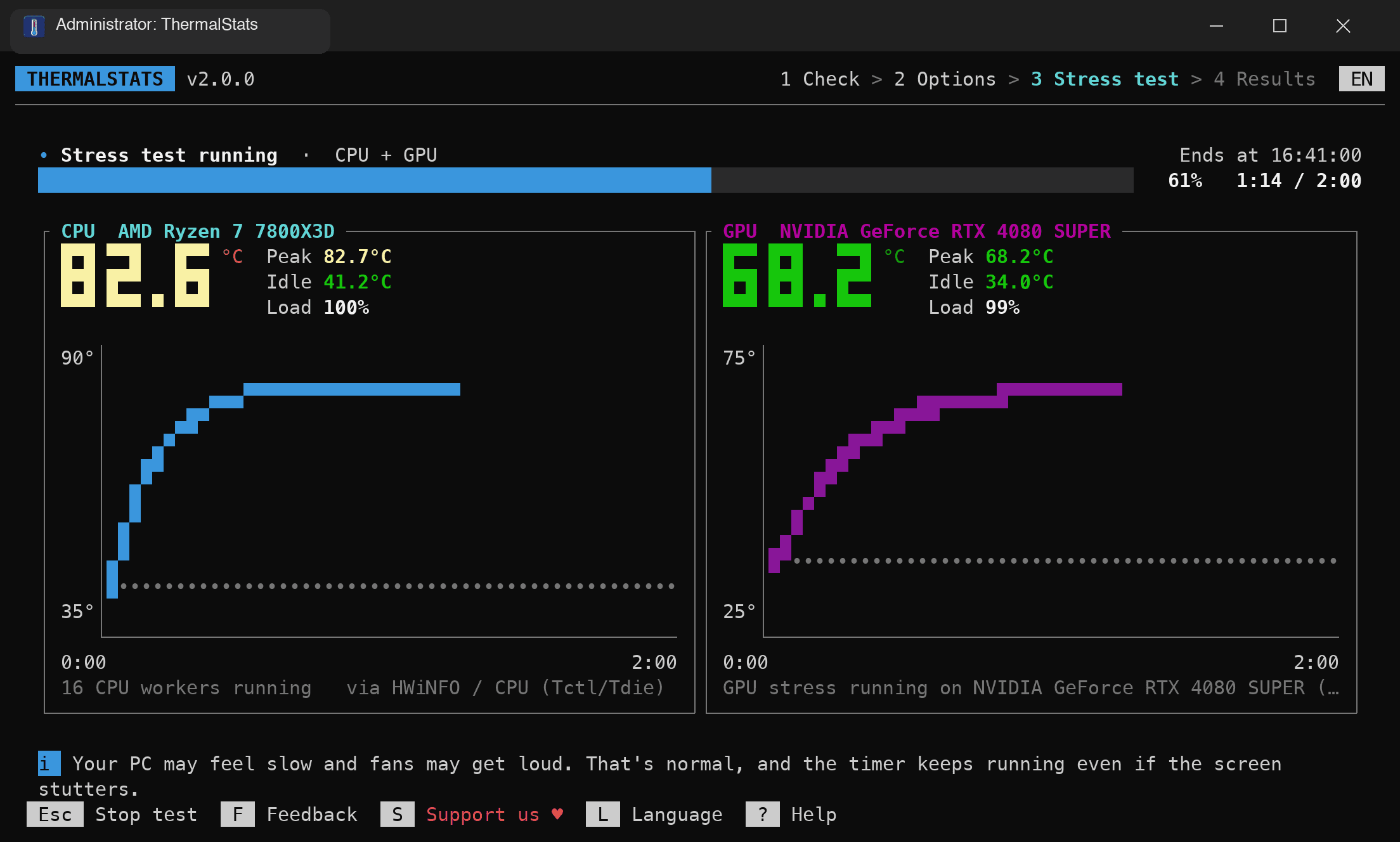
Before anything runs, see your CPU and GPU temperatures updating live, so you know they're being read correctly.
Real-time dashboard
Large live readouts, idle and peak temperatures, load, and a chart for each part while the test runs.
A timer that never stalls
The progress bar runs on the clock, not on your CPU, so it keeps moving at 100% load and shows exactly when the test ends.
Choose your GPU
Laptop with two graphics chips or a multi-GPU rig? Pick exactly which GPU to stress and monitor.
Instant comparison
Results are submitted automatically when the test finishes, and you see right away how your temperatures compare with the same hardware.
Clear, honest warnings
Know what to expect before the load starts, and get a heads-up if your PC is already warm, a sensor isn't responding or the GPU isn't fully loaded.
Plus: one-key diagnostics, in-app feedback, mouse support and 9 languages. Read the release notes
How it works
- 1Download and open ThermalStats. On Windows, just double-click it and accept the administrator prompt.
- 2Check that your CPU and GPU temperatures show up and update, then choose what to test, how long, and your cooling (optional).
- 3Start the stress test and let it run. 2 minutes is ideal, and you can stop at any time with Esc.
- 4Your result is submitted automatically, opens in your browser and shows how you compare with others on the same hardware.
Every test makes ThermalStats better
Each result adds real-world temperatures for a specific CPU, GPU and cooler, which helps others choose hardware, tune their cooling and spot problems. A test takes about 3 minutes.
Download for WindowsFree, open source, no account needed.
Available Arguments
Everything is available in the app. These options are for power users and scripts: they pre-fill the interface.
| Flag | Description |
|---|---|
| -t, --test <TYPE> | Test type: cpu, gpu, both, or debug (pre-selected in the app) |
| -t debug | Run diagnostics — only needed if temperatures aren't detected. Checks hardware detection, temperature sensors, drivers and potential blockers. Results are not submitted to the database. |
| -d, --duration <SECS> | Stress test duration in seconds, 30 to 3600 (pre-selected in the app). Only tests of 60 seconds or longer are submitted. |
| --cooling-type <TYPE> | Cooling type: stock, air, aio, custom_loop, passive, other |
| --cooling-model <NAME> | Cooler model name (e.g. "Noctua NH-D15") |
| --ambient-temp <°C> | Ambient room temperature in °C |
| --detect-only | Show detected hardware and exit |
| --no-submit | Run test but skip submitting results |
| --lang <CODE> | Language: en, fr, es, de, pt, tr, ru, ko, ar (auto-detected if omitted) |
| --plain | Plain text output instead of the full-screen interface (used automatically when the output isn't a terminal) |
# Examples:
$ thermalstats --test both --duration 120
$ thermalstats --test cpu --cooling-type aio --cooling-model "NZXT Kraken X63"
$ thermalstats --detect-only
$ thermalstats --test debug
Tip: We recommend running for at least 120 seconds so your cooling system has time to fully engage under sustained load, giving you a more realistic temperature reading.
Having trouble getting accurate temperatures?
Only needed if ThermalStats can't read your CPU or GPU temperature: if the temperature check shows your readings, skip it and run a normal test. Press D on the first screen, or run with --test debug. Diagnostics checks every temperature source, runs a short 30-second stress test and uploads a log so we can help. Nothing is added to the results database. You'll get a debug log link at the end.
Send the debug log link to [email protected]